
Creating a Tag
Tags are managed in the dashboard: app.lanten.ai → Tags.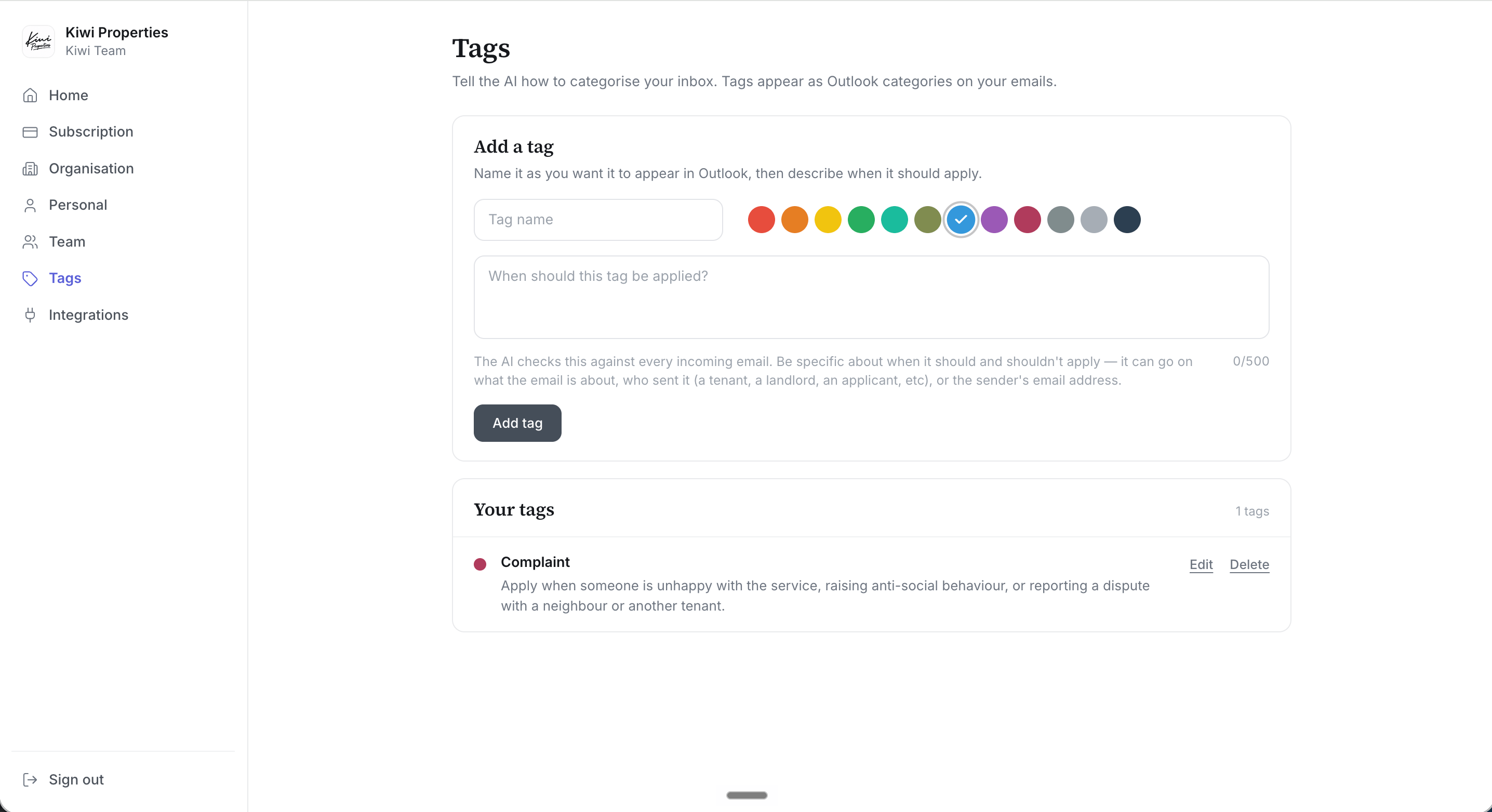
Name it as you want it to appear in Outlook, pick a colour, then describe when it should apply.
- Name the tag as you want it to appear in Outlook.
- Pick a colour — this becomes the category colour in your inbox.
- Describe when it should be applied, in up to 500 characters.
What gets tagged
- Tags apply to new email arriving after the tag exists — Lanten doesn’t backfill your history.
- Wrong call? Add or remove the category on any email in Outlook as normal. Corrections don’t retrain the AI — if a tag keeps misfiring, sharpen its description instead; that’s the lever.
Finding tagged emails
Tagged emails show their colours in the message list. From there, Outlook’s own machinery does the work: filter the inbox by category, click a category to see everything carrying it, or save a category search. The best trick: add the tag to Outlook’s Favourites. In the folder pane, add a favourite, search the tag’s name, and select it.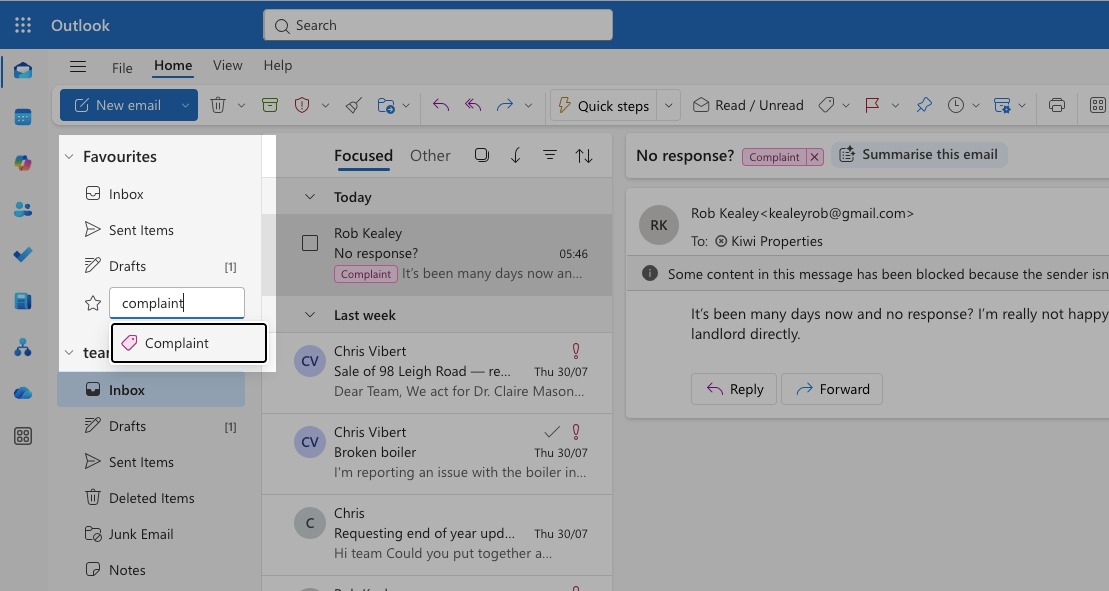
Add a favourite in the folder pane and search the tag's name.
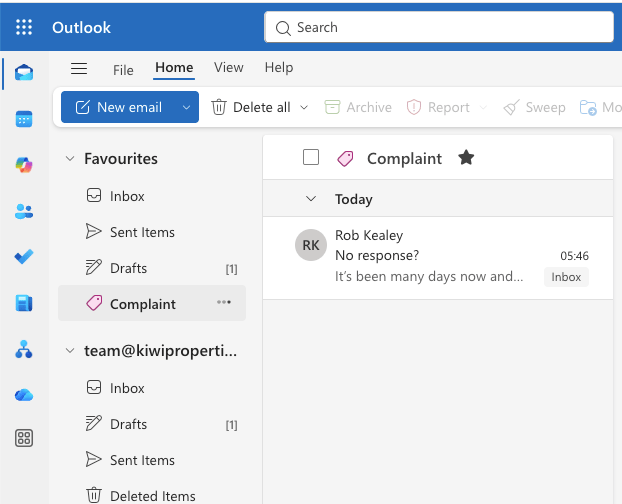
One click in Favourites: every email carrying the tag, nothing moved anywhere.
Tags vs separate inboxes
The old way to organise a lettings inbox is more inboxes: maintenance@, accounts@, complaints@ — each one a place for things to be forwarded to, lost in, and double-answered from. Tags are the alternative: one inbox, many views. The same email can beMaintenance and Urgent and High-value landlord at once — no forwarding, no “who’s got this?”, full thread history intact. Ideas that work well:
- Urgent requests — anything needing same-day action
- Complaints — service issues, disputes, anti-social behaviour
- High-value landlords — your top clients, by name or address if you like
- Compliance — gas certificates, EICRs, licensing