> ## Documentation Index
> Fetch the complete documentation index at: https://help.lanten.ai/llms.txt
> Use this file to discover all available pages before exploring further.
# Creating tasks & notes in Street
> Two actions that are always one click away: log a note or set a task in Street without leaving the email.
Whatever email you're reading, two Street actions are always available in the panel: **Create note** and **Create task**. They're how the conversation in your inbox becomes a record in your CRM — without opening Street.
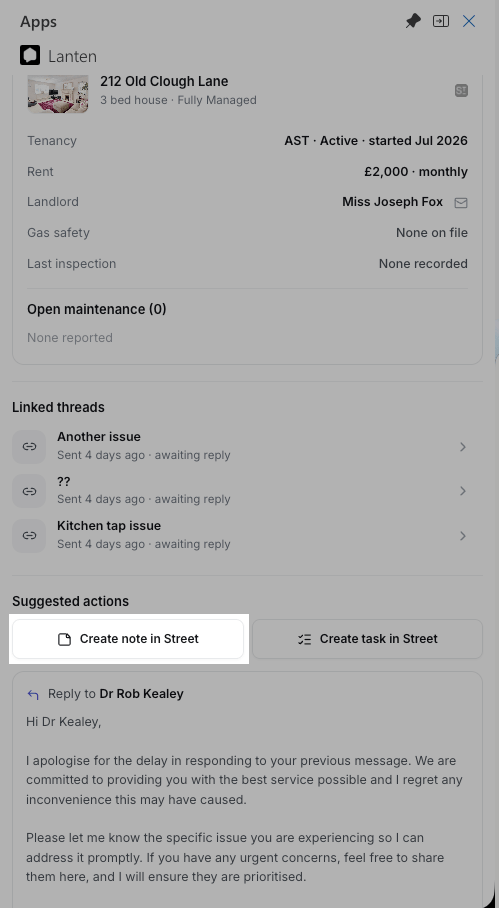 **First time only:** pick yourself from the **Author** (notes) or **Assignee** (tasks) list — that's how the record is attributed in Street. Lanten remembers your choice and defaults to it from then on.
## Create a note in Street
Use it when the email contains something worth keeping on the record: a tenant's new phone number, a landlord agreeing to a spend, a warning sign you want the next person to see.
**First time only:** pick yourself from the **Author** (notes) or **Assignee** (tasks) list — that's how the record is attributed in Street. Lanten remembers your choice and defaults to it from then on.
## Create a note in Street
Use it when the email contains something worth keeping on the record: a tenant's new phone number, a landlord agreeing to a spend, a warning sign you want the next person to see.
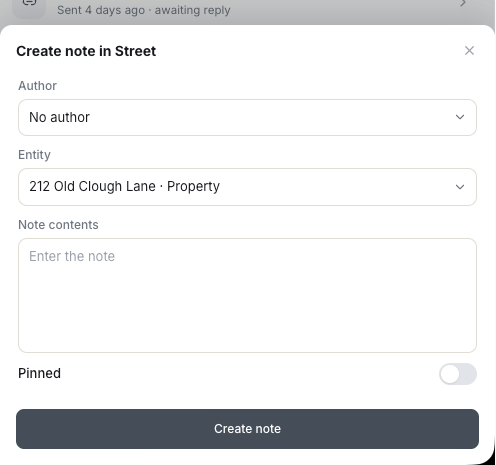 The form opens in the panel.
**Entity** is pre-set to whatever the email matched — the tenant, property or landlord the note belongs against in Street; switch it if it belongs somewhere else. Write the **note contents**, and toggle **Pinned** if it should sit at the top of the record.
It appears on that record in Street immediately.
## Create a task in Street
Use it when the email creates a to-do: chase the gas certificate, book the inspection, call the landlord back Friday.
The form opens in the panel.
**Entity** is pre-set to whatever the email matched — the tenant, property or landlord the note belongs against in Street; switch it if it belongs somewhere else. Write the **note contents**, and toggle **Pinned** if it should sit at the top of the record.
It appears on that record in Street immediately.
## Create a task in Street
Use it when the email creates a to-do: chase the gas certificate, book the inspection, call the landlord back Friday.
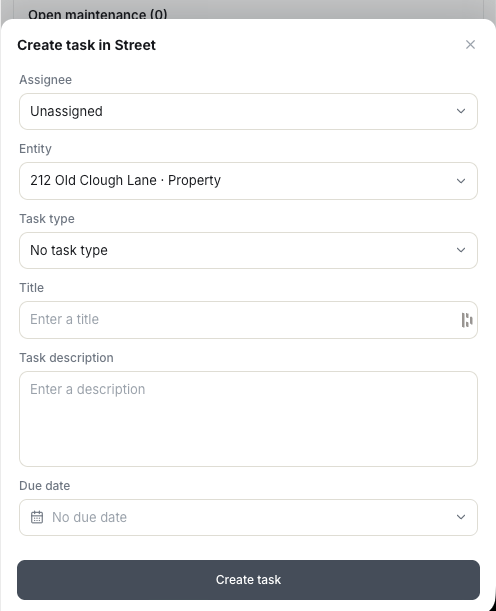 The form opens in the panel.
**Entity** is pre-set to the record the email matched. Pick a **task type** — the list comes straight from your Street task types — then add a **title**, **description** and **due date**.
The task lands in Street's task list, assigned and dated.
Lanten will also **suggest** a note or task when the email obviously calls for one — same forms, pre-filled harder. See [Suggested actions](/using-lanten/suggested-actions).
The form opens in the panel.
**Entity** is pre-set to the record the email matched. Pick a **task type** — the list comes straight from your Street task types — then add a **title**, **description** and **due date**.
The task lands in Street's task list, assigned and dated.
Lanten will also **suggest** a note or task when the email obviously calls for one — same forms, pre-filled harder. See [Suggested actions](/using-lanten/suggested-actions).