> ## Documentation Index
> Fetch the complete documentation index at: https://help.lanten.ai/llms.txt
> Use this file to discover all available pages before exploring further.
# Inviting team members
> Invite colleagues from the dashboard — Street is already connected for them, so setup is just their own inbox.
Lanten works best when the whole inbox is covered — a tagged, summarised, CRM-matched inbox is only as useful as the number of people working in it.
## Send an invite
Go to [app.lanten.ai](https://app.lanten.ai) → **Team**, enter their name and email, choose a role, and click **Invite**.
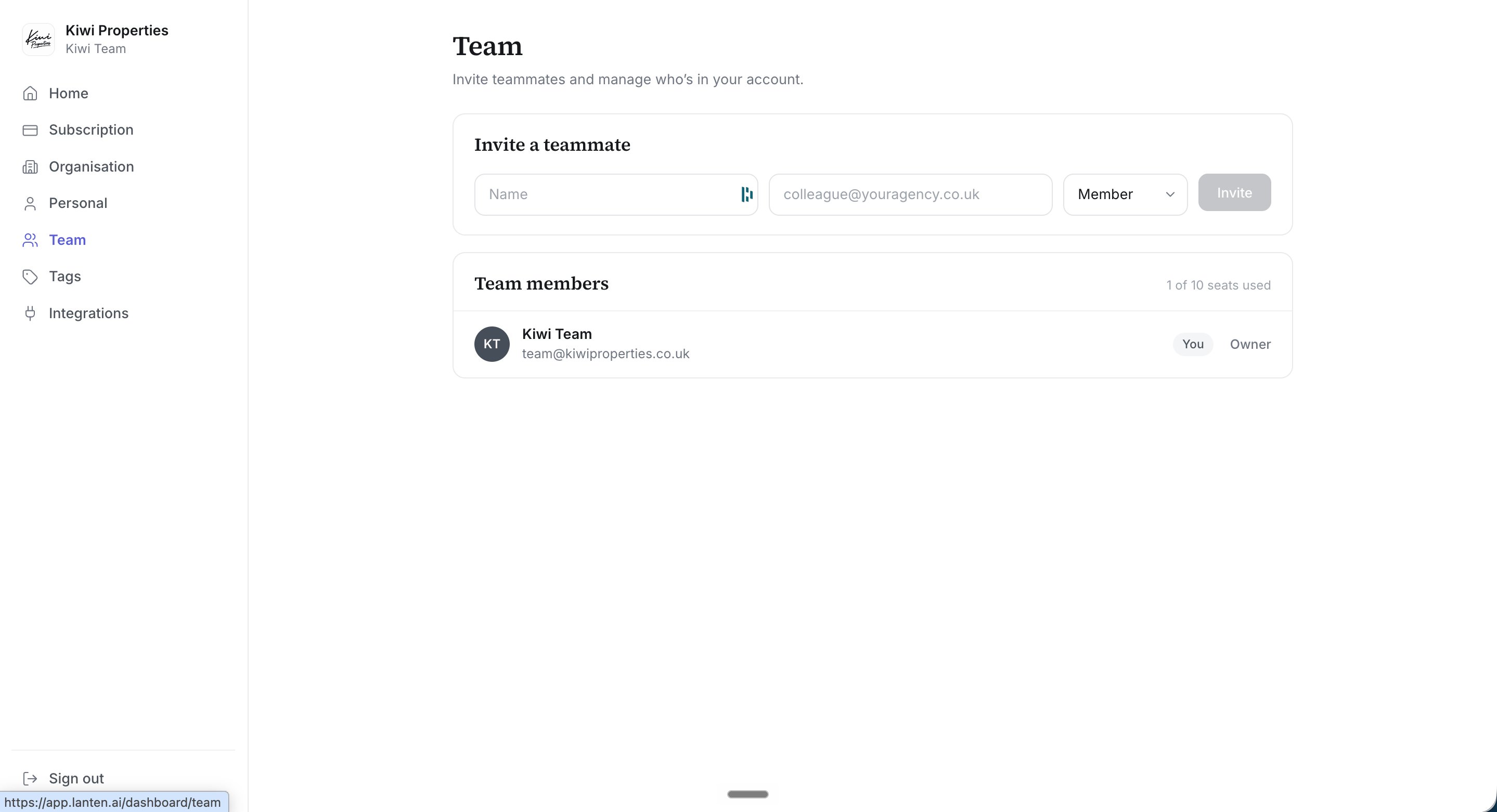 The page also shows your seat usage (for example, "1 of 10 seats used") — manage seat count from [Subscription](/team-billing/subscription).
### Roles
* **Owner** — full access, including billing and team management
* **Member** — everyday use of Lanten
## What your teammate experiences
1. They receive an invite email and click through to register — their account joins your team automatically.
2. They **connect their own Outlook** (that's per-person; see [Connecting Outlook](/setup/connect-outlook)).
3. They install the add-in and [pin it](/getting-started/pin-lanten).
That's the whole list. **Street is already connected** — the agency-level connection you made covers them, and your Tags apply to their incoming email too.
On the Team plan, seats are billed per user with a minimum of 3 — see [current pricing](https://lanten.ai/pricing).
The page also shows your seat usage (for example, "1 of 10 seats used") — manage seat count from [Subscription](/team-billing/subscription).
### Roles
* **Owner** — full access, including billing and team management
* **Member** — everyday use of Lanten
## What your teammate experiences
1. They receive an invite email and click through to register — their account joins your team automatically.
2. They **connect their own Outlook** (that's per-person; see [Connecting Outlook](/setup/connect-outlook)).
3. They install the add-in and [pin it](/getting-started/pin-lanten).
That's the whole list. **Street is already connected** — the agency-level connection you made covers them, and your Tags apply to their incoming email too.
On the Team plan, seats are billed per user with a minimum of 3 — see [current pricing](https://lanten.ai/pricing).