> ## Documentation Index
> Fetch the complete documentation index at: https://help.lanten.ai/llms.txt
> Use this file to discover all available pages before exploring further.
# Pinning Lanten in Outlook
> Pin the panel once and Lanten opens beside every email you read.
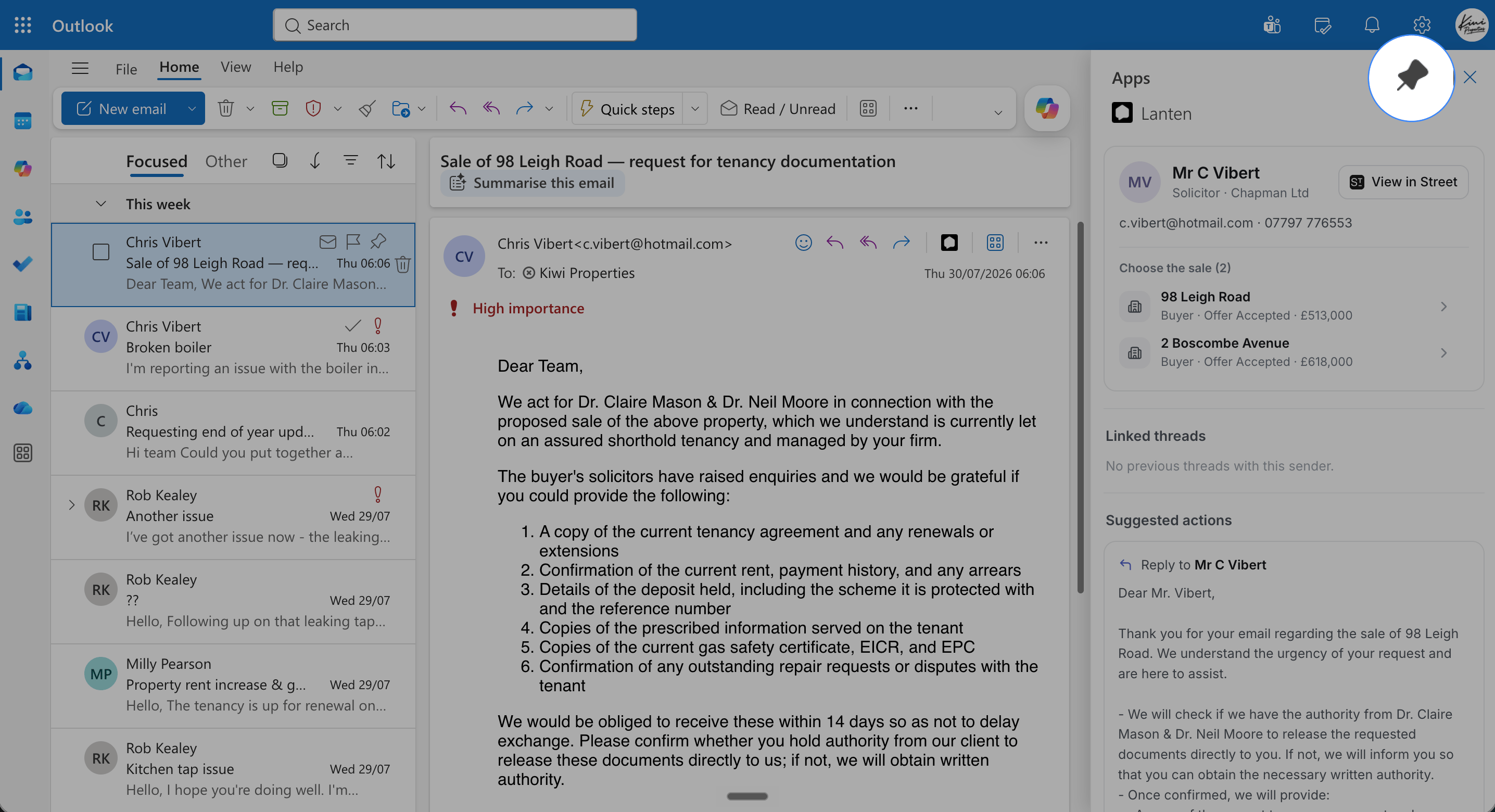
By default, Outlook closes an add-in when you move to the next email. Pinning fixes that: once pinned, Lanten sits beside every email you open — which is the whole point of an ambient co-pilot.
 ## Pin it
1. Open any email and launch Lanten (via the Lanten icon on the message, or **Apps**).
2. At the top of the panel, click the **pin** icon.
3. Move to another email — Lanten stays open and updates to the new sender.
1. Open an email and launch Lanten from the ribbon.
2. Click the **pin** icon in the top-right of the panel.
3. The panel now stays open as you move through your inbox.
1. Open an email, click **Apps**, and choose Lanten.
2. Click the **pin** icon at the top of the panel.
1. Open an email and launch Lanten.
2. Click the **pin** icon at the top of the panel.
Pinning keeps the panel open, but you can also make Lanten's icon appear directly on every message so it's one click away even when unpinned — see [Customising reading-pane actions](/outlook/reading-pane-actions).
No pin icon, or no Lanten at all? Head to [Lanten isn't showing in Outlook](/troubleshooting/add-in-not-showing).
## Pin it
1. Open any email and launch Lanten (via the Lanten icon on the message, or **Apps**).
2. At the top of the panel, click the **pin** icon.
3. Move to another email — Lanten stays open and updates to the new sender.
1. Open an email and launch Lanten from the ribbon.
2. Click the **pin** icon in the top-right of the panel.
3. The panel now stays open as you move through your inbox.
1. Open an email, click **Apps**, and choose Lanten.
2. Click the **pin** icon at the top of the panel.
1. Open an email and launch Lanten.
2. Click the **pin** icon at the top of the panel.
Pinning keeps the panel open, but you can also make Lanten's icon appear directly on every message so it's one click away even when unpinned — see [Customising reading-pane actions](/outlook/reading-pane-actions).
No pin icon, or no Lanten at all? Head to [Lanten isn't showing in Outlook](/troubleshooting/add-in-not-showing).